Windows
Open PowerShell or Terminal, paste the command, and press Enter. Windows will show an administrator permission prompt.
irm https://mytechie.com.au/remote/windows.ps1 | iexSupports Windows 10/11 on x64 and ARM64.
Your MyTechie technician sent you this link. Run one command on the computer you want supported and the installer will set up RustDesk automatically.
The correct option is highlighted automatically when your browser reports the operating system.
Open PowerShell or Terminal, paste the command, and press Enter. Windows will show an administrator permission prompt.
irm https://mytechie.com.au/remote/windows.ps1 | iexSupports Windows 10/11 on x64 and ARM64.
Open Terminal (Applications › Utilities), paste the command, and enter your Mac password when asked. No characters appear while you type it; this is normal.
curl -fsSL https://mytechie.com.au/remote/macos.sh | sudo bashAfter installation: allow RustDesk in Accessibility and Screen Recording when macOS asks.
Open a Terminal, paste the command, and enter your administrator password when asked.
curl -fsSL https://mytechie.com.au/remote/linux.sh | sudo bashSupports Debian, Ubuntu, Raspberry Pi OS, Fedora, RHEL, openSUSE, and Arch on published RustDesk architectures.
RustDesk is verified and installed. Existing installations are reused so active setups are not unnecessarily replaced.
An ID and access password appear. Read both only to your invited MyTechie technician.
Your computer is ready. Keep the installer window and RustDesk open while your technician connects.
The access password remains active until it is changed, the command is run again, or RustDesk is removed. Running the command again changes the saved password.
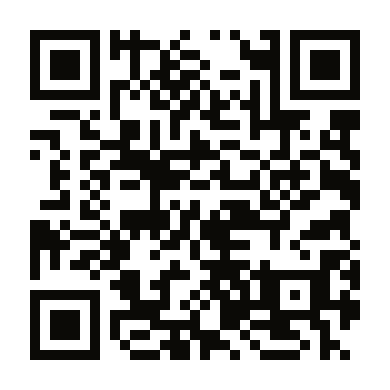
Scan this code to open the page, then continue the setup on a supported Windows, macOS, or Linux computer.
mytechie.com.au/remoteIf setup stops: leave the installer window open and tell your MyTechie technician the error code shown.
If the ID is not ready: open RustDesk from the Windows Start menu, macOS Applications folder, or Linux application menu and read the ID from the app.
To stop future access: change the permanent password inside RustDesk or uninstall RustDesk from Windows Installed Apps, the macOS Applications folder, or your Linux package manager. Ask your technician if you would like help removing it.
The installer configures RustDesk to use remote.mytechie.com.au:21116 for device registration and remote.mytechie.com.au:21117 for relaying. The string below contains those public server addresses and the public verification key; it contains no password.
0nI9MnVR9Uc2I1dGVWNQRUZn1UU3Q0cQ1UV6NVUoljQkdUTWV0YZVWdhlnYShjI6ISeltmIsIyNxETMyoTdh5SbvNmLllGajVGd51mLlR3btVmciojI5FGblJnIsIiNxETMyoTdh5SbvNmLllGajVGd51mLlR3btVmciojI0N3boJyeRelease metadata: version.json · SHA256SUMS
These files are unsigned and your operating system will block them.
Windows SmartScreen and macOS Gatekeeper protect you from unrecognised software. These preview builds have not been submitted for code-signing.
Use them only while working with your MyTechie technician. If the file is blocked, stop and use the one-line script commands above — they download the official signed RustDesk package directly.
| Platform | File | SHA-256 |
|---|---|---|
| Windows 10/11 (x64 and ARM64) | Download EXE | 187cbf83132351dc27e66b1921c7c3493979a4e1cd5c6088159aab5ff6023cbe |
| macOS Universal | Download DMG | 27c68f56839cd0a1c920f71ac1258a29c709733658d000bf770472c0c10b28c5 |